Call Now
How to Transfer FTM to New Computer with Windows 11
Upgrading to a new Windows 11 PC and need to transfer FTM to new computer? You’ve already paid for Family Tree Maker, so you don’t need to buy it again. The process is simple if you follow the right order. Here’s exactly what works based on real user experiences.
Step 1: Back Up Your Tree on the Old Computer
Open FTM on your current PC. Go to File > Backup. Choose a full backup that includes your media files, notes, and sources. Save the .ftmb file to an external USB drive, external hard drive, or cloud storage like OneDrive. Name it clearly with today’s date.
This step protects years of genealogy work. Double-check that the backup completed successfully before moving on.
Step 2: Install FTM on Your New Windows 11 Computer
Download the latest version of Family Tree Maker (2019 or 2024) from the official Mackiev website. Use your existing license key or registration details from your original purchase email. Windows 11 runs FTM smoothly in most cases.
Install the software following the prompts. Enter your activation info when asked. You won’t need to repurchase – your paid license transfers with proper activation.
Step 3: Restore Your Family Tree
Copy the backup file from your USB to the new computer. Open FTM, then go to File > Restore (not just Open). Select your .ftmb backup file. Follow the prompts to load your complete tree, including attached photos and documents.
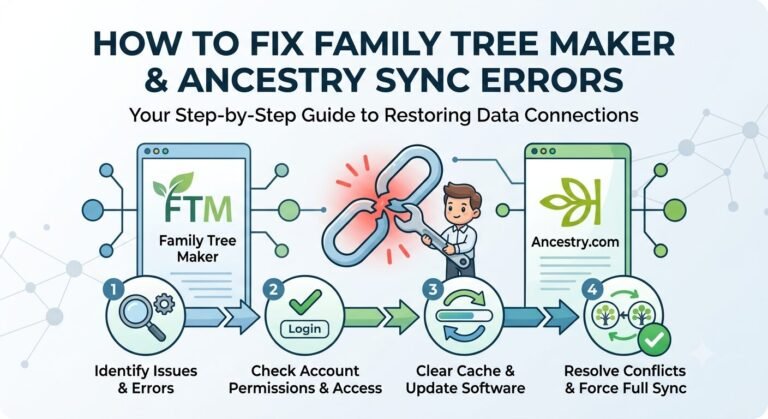
If you use TreeVault or Ancestry sync, sign in after restoring to reconnect everything. Test a few entries to confirm photos and links work.
Common Tips for Smooth Transfer
- Media files: If you have many attached images, copy the entire media folder separately to the same location on the new PC.
- License issues: If activation fails, contact Mackiev support with your purchase proof – they help longtime users.
- Deactivate old PC (optional): Some versions let you deactivate the old installation via the Help menu to free up the license.
- Keep your USB backup until everything runs perfectly on the new setup.
This method keeps your paid FTM license and all your data intact during the Windows 11 upgrade. Most people complete the transfer FTM to new computer process in under an hour.
Take your time with the backup, and you’ll pick up right where you left off on your new machine. Your family history stays safe and organized.
For more information please do contact us.