Call Now
How to Merge Duplicate Individuals in Family Tree Maker
As your genealogy tree grows, downloading hints from online databases inevitably creates clutter. If you are struggling with repeated entries, learning how to merge duplicate individuals in Family Tree Maker is crucial for maintaining an accurate, clean database. Unchecked duplicates distort your family lines, mess up chart printing, and cause syncing errors with online databases.
Why You Must Merge Duplicate Individuals in Family Tree Maker
Duplicate profiles usually appear after importing external GEDCOM files or accepting multiple Ancestry hints. Leaving repeated records unresolved causes several issues across your software workspace.
- Bloated File Size: Extra profiles carry duplicate facts, sources, and media, slowing down your software performance.
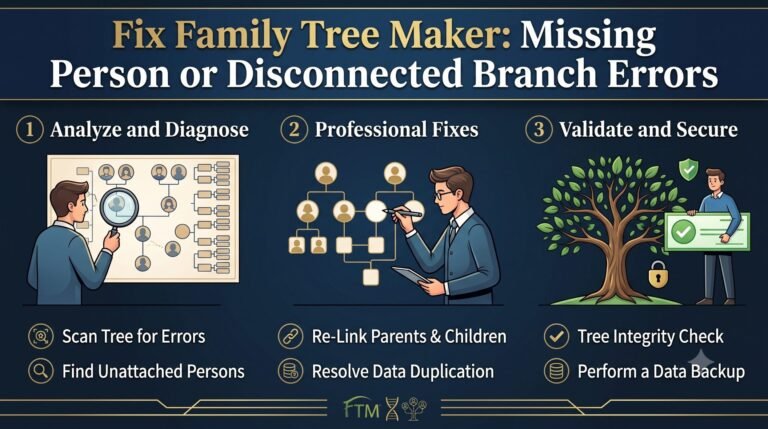
- Split Lineages: Children get attached to one version of a parent, while siblings get attached to another.
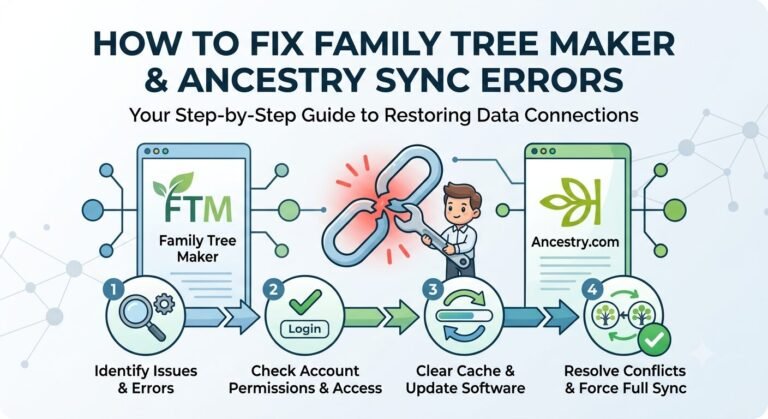
- Syncing Bottlenecks: Online databases get confused when trying to match two identical local profiles to a single web profile.
Step-by-Step Guide to Merging Duplicates Safely
Follow these exact steps to combine two profiles into one complete, accurate record without losing media or source citations.
1. Run the Find Duplicate People Tool
Do not search for duplicates manually. Go to the Edit menu at the top bar and select Find Duplicate People. The software will scan your entire tree database and display a list of potential matches based on names, birth dates, and death dates.
2. Compare Facts in the Merge Wizard
Select a pair of duplicate individuals from the list and click Merge. The software opens a side-by-side comparison screen. Carefully review the dates, places, and attached media for both entries. Choose which facts you want to keep as primary and which should be stored as alternate facts.
3. Finalize and Compact Your Database
Click Merge to combine the two profiles into a single individual. All attached sources, notes, and media from both records will automatically combine into the primary profile. After resolving all matches, go to File > Compact File to clean up the newly freed database index pointers.
For more information please do contact us.