Call Now
How to Fix Family Tree Maker & Ancestry Sync Errors
If you have ever seen the dreaded red “Sync Error” icon in Family Tree Maker (FTM), you know the panic. One minute your family history is intact, and the next, your media links drop, or your changes fail to upload to Ancestry.
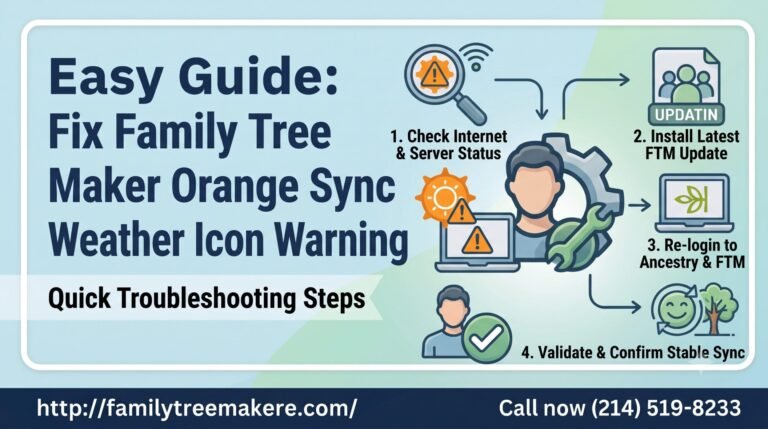
Syncing errors usually stem from corrupted media paths, broken cache files, or temporary server timeouts between FTM and Ancestry. Here is how to fix the issue safely without risking your hard-earned research data.
Step-by-Step Fix for FTM Sync Glitches
- Check System Status: Before tweaking your software, verify that both Ancestry and Software MacKiev (FTM) servers are fully operational.
- Back Up Your Tree (Crucial): Go to File > Compact File. Before compacting, check the box to Create a detailed backup. Make sure to include your media files.
- Run File Compact: Compacting cleans up deleted record references and reorganizes data structures. Run it 2–3 times until the file size reduction hits 0%.
- Unlink and Relink Your Tree:
- Navigate to the Plan workspace.
- Select Unlink Syncing Tree. (Note: This breaks the connection safely; it does not delete your cloud tree).
- Re-upload or relink your FTM file to your Ancestry tree.
Pro Tips to Prevent Future Sync Glitches
- Never edit both simultaneously: Avoid making heavy media edits on Ancestry’s website and FTM at the exact same time.
- Keep file sizes lean: Compress oversized images before embedding them into your tree to avoid server timeouts.
- Update regularly: Ensure you are running the latest version of Family Tree Maker, as older releases frequently suffer from outdated sync protocols.
Need Help Fixing a Stubborn Sync Issue?
Don’t risk losing generations of research to file corruption or broken links. If your tree is still failing to sync, contact our genealogy tech specialists today for instant, one-on-one tree recovery and sync assistance!
For more information please do contact us.