Call Now
How to Fix Common FTM Sync Issues with Ancestry Tree
FTM users often hit roadblocks when trying to sync their desktop tree with Ancestry. If your FTM software refuses to connect or shows errors, you are not alone. Many genealogists face these FTM sync issues after updates or on new computers.
Why FTM Sync Problems Happen
FTM connects your local file to online trees on Ancestry for easy updates. Common triggers include software updates, internet glitches, large media files, or account settings. FTM 2024 brings improvements, but occasional hiccups still appear.
Step-by-Step Fix for FTM Sync Issues
Start with basics. Restart your computer and FTM. Then try these steps:
- Check your Ancestry login inside FTM. Sign out and sign back in.
- Compact your tree file. Go to File > Compact and Repair. This clears junk data that often blocks sync.
- Update FTM to the latest version. Patches fix many known problems.
- Test with a small tree. Create a test file and sync it to spot if the issue lies in your main database.
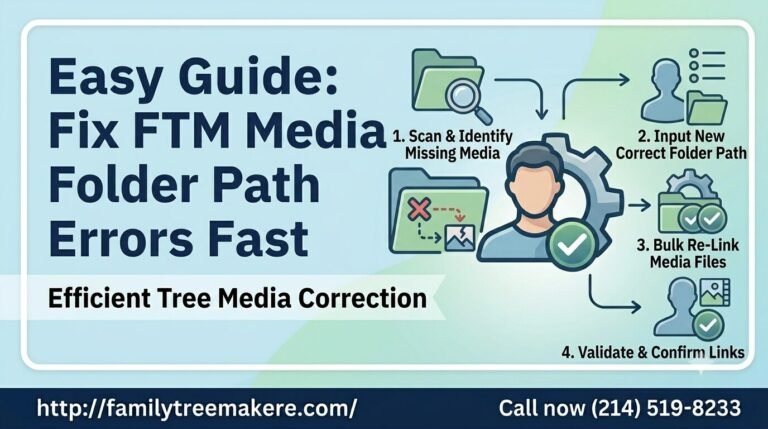
If media files cause trouble, unlink large attachments temporarily or move them to a cloud folder while keeping paths consistent.
Extra Tips to Prevent Future FTM Sync Issues
- Always back up your FTM file before syncing.
- Keep your tree under reasonable size. Split big trees if needed.
- Use wired internet for important syncs instead of Wi-Fi.
- Clear Ancestry cache occasionally from your browser.
Most FTM users resolve sync problems quickly with these methods. Once fixed, the two-way sync makes research much smoother.
Your family history stays safe and current without losing progress. If issues continue, reach out to FTM support—they offer helpful guides tailored to your setup.